3 Computer science fundamentals and resources
- Bioinformatics Data Skills by Vince Buffalo
4 Operating system Linux
4.1 Linux basic resources
4.1.1 Books
4.1.2 Online courses
4.2 Linux advanced resources
4.2.1 Books
4.2.2 Online courses
4.3 Linux persian reources
4.4 Linux fast tutorial
5 Git and Github
5.1 Git basic resources
5.1.1 Books
5.1.2 Online courses
5.2 Git advanced resources
5.2.1 Books
- The best and most reliable: Free book of Pro Git
- Happy Git and GitHub for the useR
5.2.2 Online courses
- Introduction to Git and GitHub on Coursera
5.3 Git persian reources
5.4 Git fast tutorial
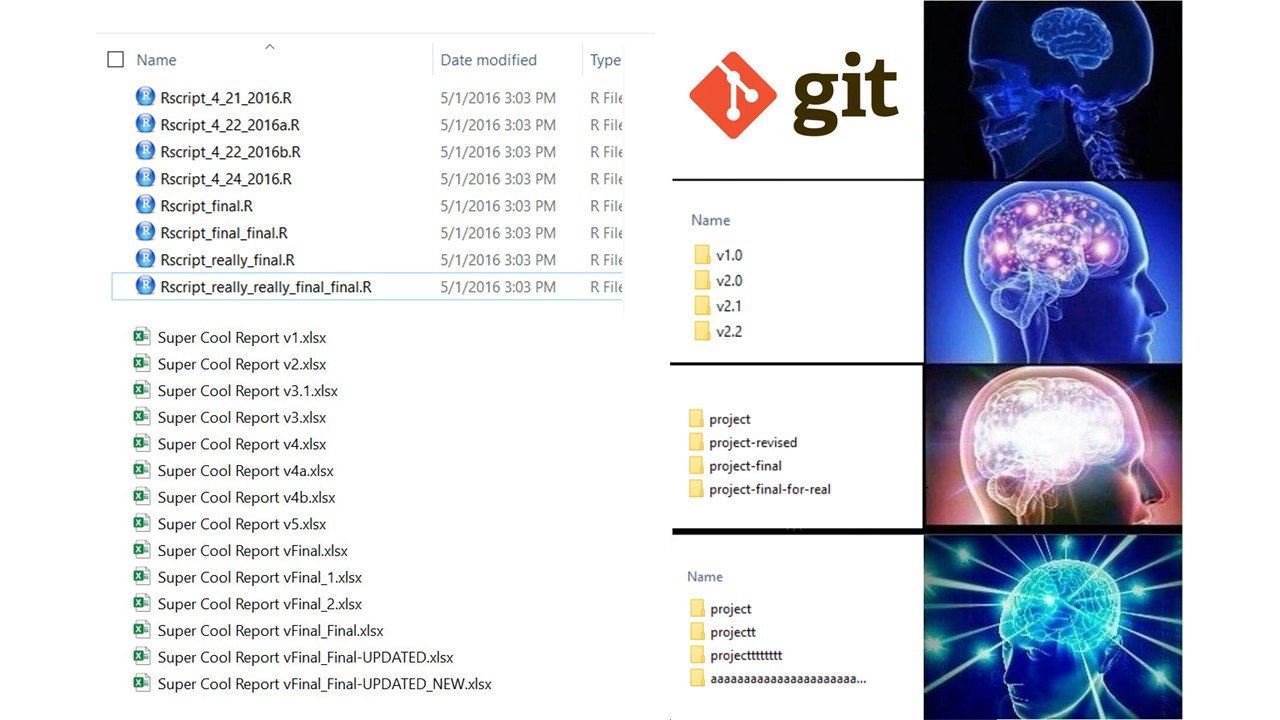
5.4.1 What is Version Control?
Imagine you’re writing a research paper. You make changes, save different versions, and sometimes want to go back to previous versions. Version control is like having a time machine for your files - it helps you track changes, collaborate with others, and maintain a history of your work.
Git was made by Linus Torvalds, the same person who made Linux! It is like a super-powered save system. Instead of saving files with names like paper_FINAL_final_UPDATED_NEW.docx or proj_NEW_LASTEST.R, Git keeps track of all changes automatically.
5.4.2 Basic Git Concepts & Commands
Repository (Repo): Think of it as a project folder that Git watches. Like a photo album that keeps track of all your project’s versions. Local repo is a copy of the remote repo on your computer. Remote repo can be the version stored on GitHub or GitLab.
Commit: Like taking a snapshot of your work. Each commit is a saved point you can return to. Like saving a checkpoint in a video game or giving your file a name/version.
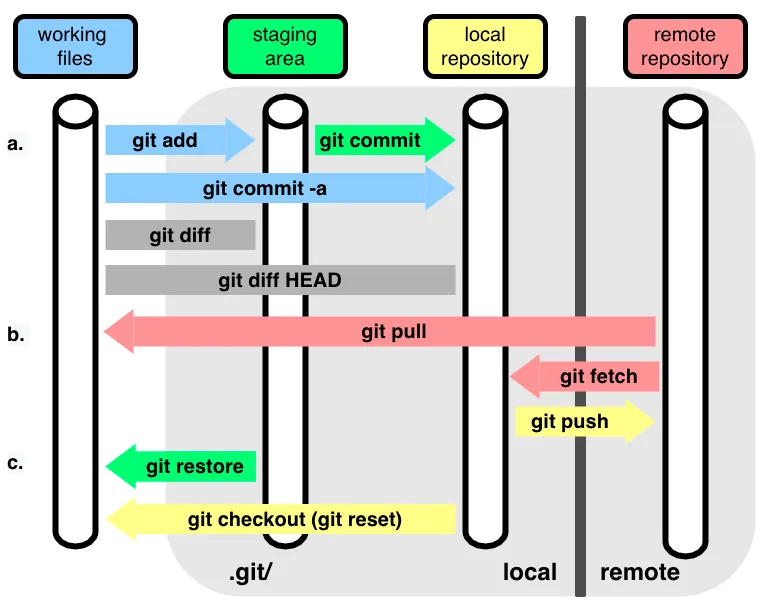
- Branch: Like creating a parallel universe for your work. You can experiment without affecting the main project. Like writing a draft of your paper without changing the original. Also can be used to collaborate with others, simultaneously working on the same project! You can Merge your changes back to the main branch after you are done. Master/Main branch is the main branch of the repo.
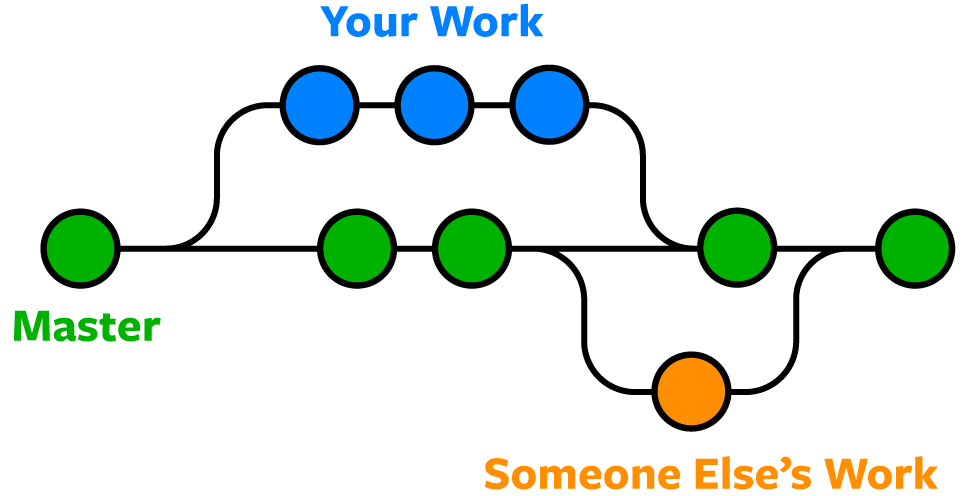
# Start a new project (create a new repository)
git init

# Check the status of your files
git status

# Add files to be saved (staging)
git add filename.txt    # Add specific file
git add .              # Add all files

# Save your changes (commit)
git commit -m "Description of changes"

# See your project history
git log

# Reset your branch to the latest commit
git reset --hard
5.4.3 GitHub: Your Project’s Home on the Internet
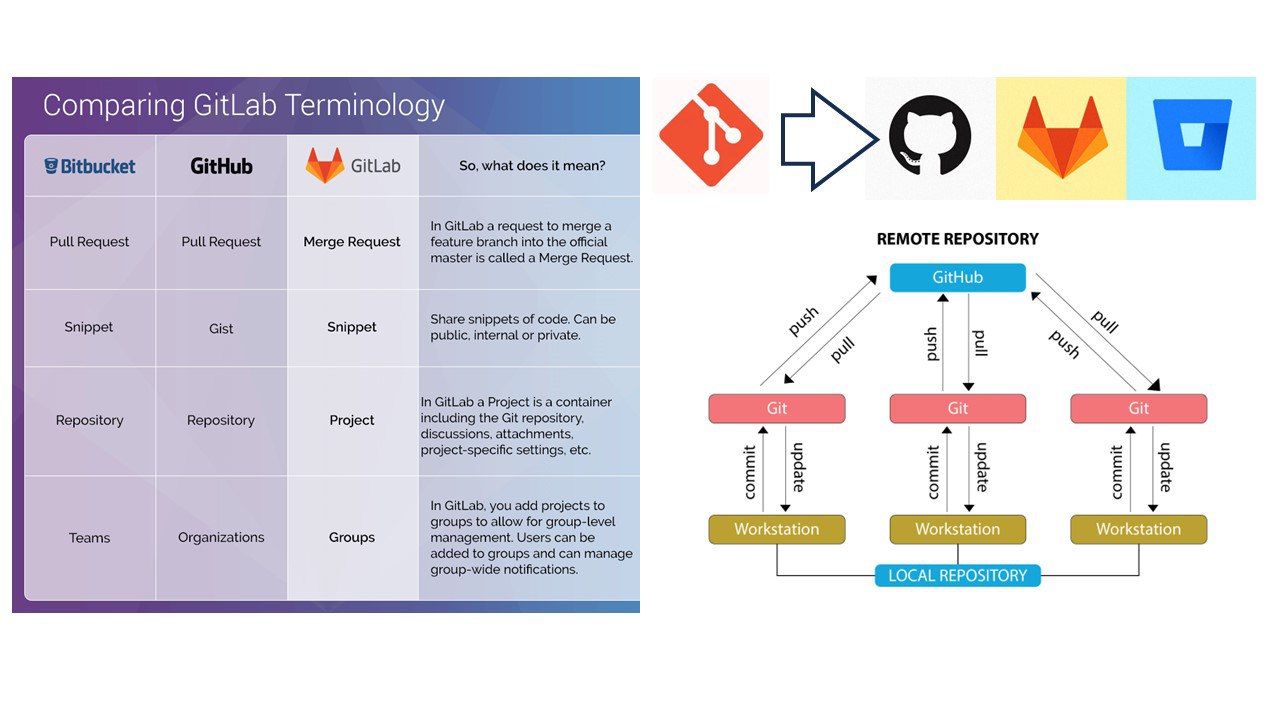
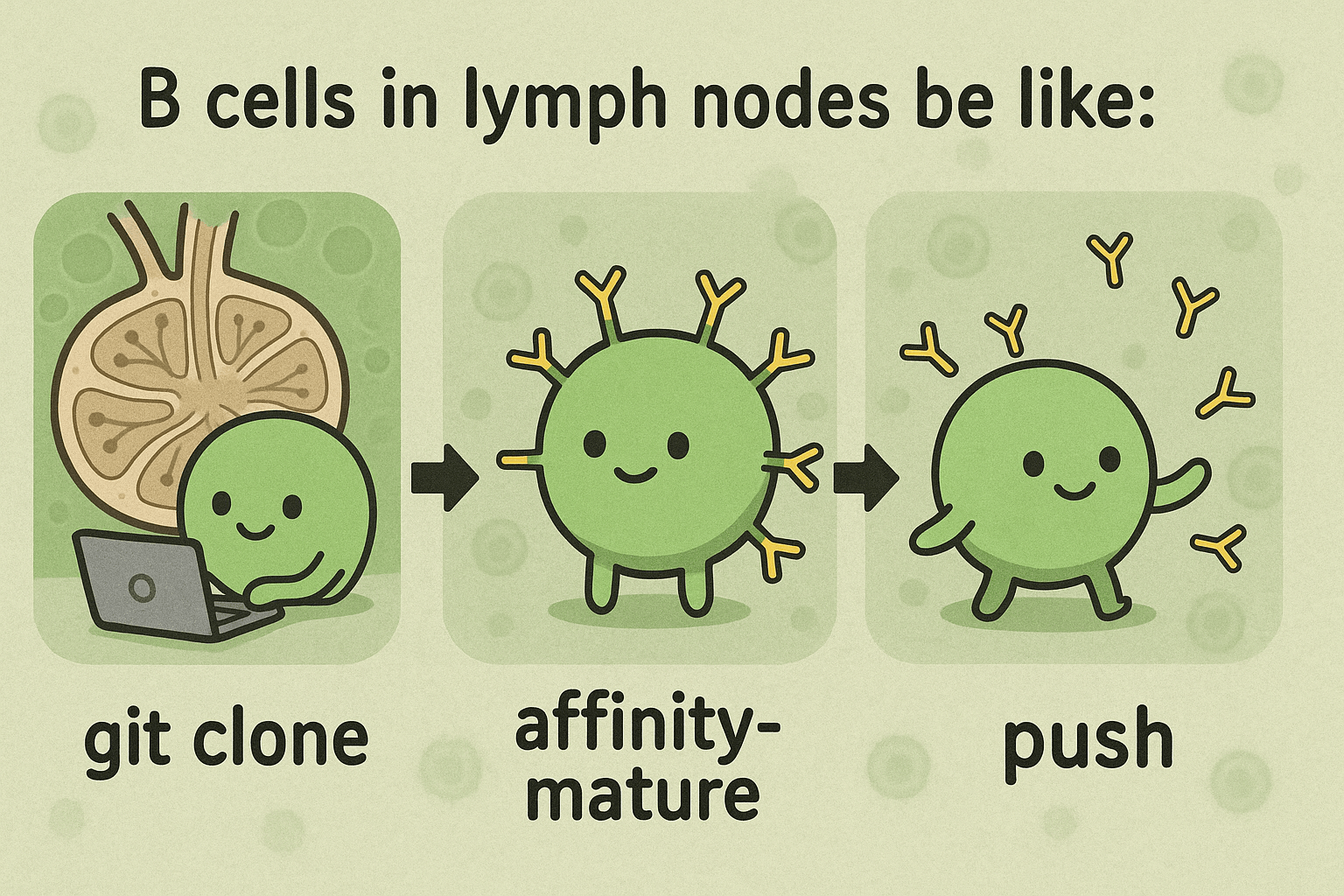
GitHub is like a social network for your code. It’s where you can store your projects online, collaborate with others and share your work with the world. GitHub has Repository Hosting - a cloud storage specifically for code, Issue Tracking - a to-do list for your project and bug reporting, Pull Requests - suggesting changes to someone else’s work or requesting changes to your own work, Code Review - peer review process for your code, and CI/CD features. Common workflows in GitHub: Fork a Repository: Like making a copy of someone else’s project. You can modify it without affecting the original. Push Changes: Like uploading your changes to GitHub. Clone a Repository: Like downloading a project to your computer.
# Clone a repository
git clone https://github.com/username/repository.git

# Get updates from remote repository
git pull

# Send your changes to remote repository
git push
5.4.4 Common Scenarios and Best Practices
When working with Git, follow these key practices: write short & clear commit messages to document changes, create feature branches for new work, keep your local copy updated regularly, and review changes before committing. For beginners, start with basic commands and simple projects, you can utilize visual tools like GitHub Desktop or VS Code’s Git integration but I prefer to use the command line (more straightforward), learn from mistakes. Git maintains history so you can always revert!!
What usually happens daily:
Starting a New Project
git init
git add .
git commit -m "Initial commit"
- Note: I prefer to initialize a new repository in GitHub with a README file and LICENSE, and then clone it to my local machine.
Updating Your Work
git pull
# Make changes
git add .
git commit -m "Description of changes"
git push
Working with Branches
git checkout -b new-branch-name
# Make changes
git add .
git commit -m "Description of changes"
git push
git checkout main
git merge new-branch-name
6 R
6.1 Link to fast tutorial
6.2 R basic resources
6.2.1 Books
6.2.2 Online courses
6.3 R advanced resources
6.3.1 Books
6.3.2 Online courses
6.4 R persian reources
- R for Data Science by Hadley Wickham
- R Programming on Coursera
6.5 R fast tutorial
7 Python
7.1 Python basic resources
7.1.1 Books
- Python for Biologists by Martin Jones ### Online courses
7.2 Python advanced resources
7.2.1 Books
7.2.2 Online courses
- Python for Data Science and AI on Coursera